$37
Portable Windows 10 USB System — Plug & Play | Standalone System
Description
Product Description
This is a fully functional Windows 10 system running from a USB drive, which can be booted on any compatible computer without installation and does not affect the existing operating system. Simply plug in the USB drive, select it as the boot device, and instantly access a fully independent Windows desktop. You’re free to install commonly used software, save files, and customize settings on this system, just as you would on a regular PC. It comes pre-installed with office software and PDF tools, allowing you to handle document editing, spreadsheets, and PDF modifications for everyday work needs. Whether traveling, on business trips, or temporarily using someone else's computer, you can quickly access a familiar work environment anywhere.
Product Features
● A complete native Windows 10 system
● Boot & Go – start directly on compatible computers
● Runs independently without affecting the existing operating system or data
● Suitable for office work, internet browsing, and temporary use scenarios
Use Cases
– Use your own operating system on any compatible computer while traveling or on business trips
– Maintain a consistent working environment when switching between different computers
– Use on public or shared computers without leaving traces or personal data behind
– As a backup system for OS failures or emergency situations
– For system recovery or backing up important data when your main system is damaged
System Information
Windows 10 Pro 64-bit (Version 21H2, Build 19044.1288)
Specifications
● Office Software
Microsoft Office Professional 2007 pre-installed
(Word, Excel, PowerPoint, Outlook, Access, Publisher)
● PDF Tools
Adobe Acrobat XI Pro 11.0.23 pre-installed
Supports PDF editing, conversion, merging, splitting, and OCR recognition
● System Support
Supports both BIOS and UEFI boot modes, compatible with modern and legacy computers
Runs independently without affecting the existing system
● Driver Support
Integrated SDI driver tool for automatic hardware detection and driver installation
● Storage Medium
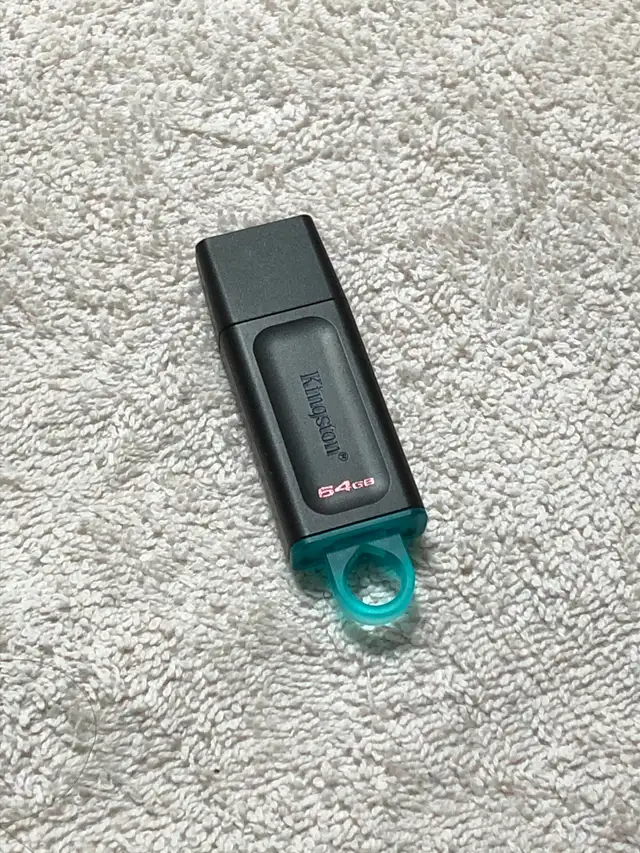
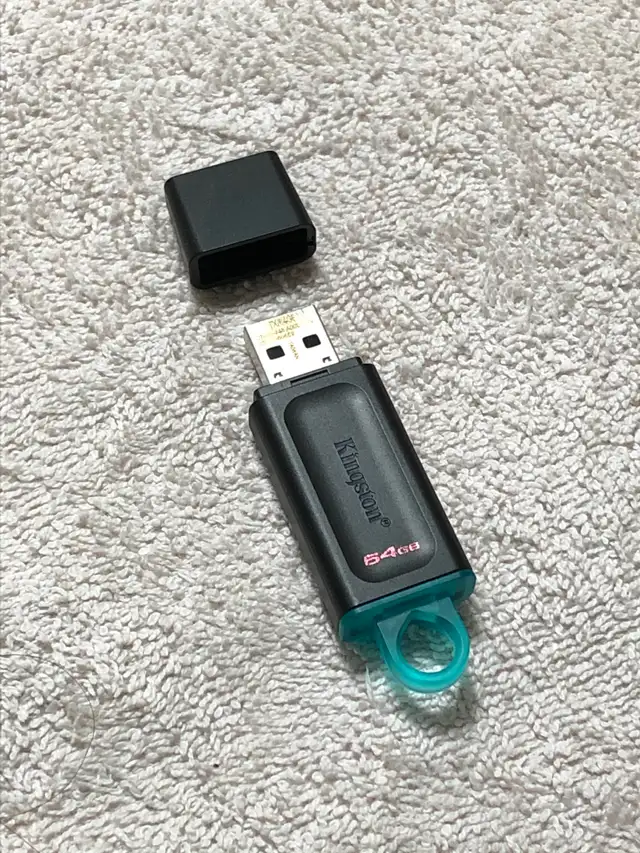
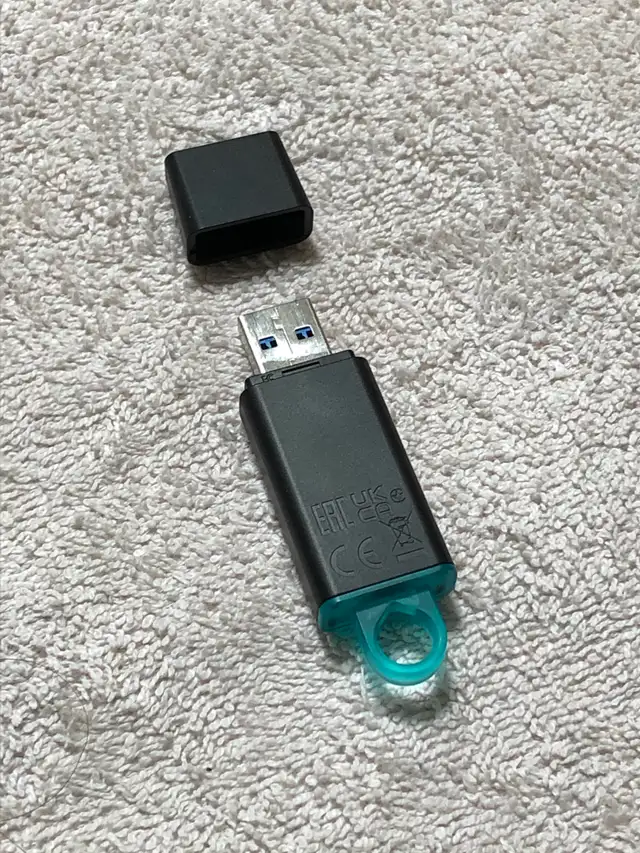
Kingston DataTraveler 64GB USB flash drive
Contact and Support
If you have any questions before or after purchase, feel free to contact me:
Phone / SMS: (647) 509-0282
Email: xbduan@hotmail.com
Pickup and Payment
● Local pickup or shipping available
● Payment accepted via cash, email transfer, or online payment
If you are also interested in a similar product, see:
Windows 10 Installation USB Drive (Incl. Office 2007 Drivers)
()
For more information & resources:
https://zx.studydiy.cloudns.ch/windows-installation/
------------------------------
Usage Instructions (For reference before purchase)
1. Boot and System Access
Ensure USB boot is enabled on your computer (usually enabled by default).
You can first try the steps below to see if the USB boot option appears. If it does not appear, enter the BIOS/UEFI settings to enable USB boot.
● Insert the USB drive
With the computer powered off, plug in the USB drive. It is recommended to use a USB 3.0 port (blue) for faster performance.
● Select USB boot
No need to modify BIOS, simply use the boot menu:
- Press the boot menu key repeatedly during startup (commonly F12, F11, ESC, F9; may vary by PC).
- Find the USB drive (e.g., KingstonDataTraveler 3.00000).
- Select the boot mode and press Enter:
- UEFI (for most modern computers, approx. 2013 and later)
- Legacy / BIOS (for older computers)
If unsure, select UEFI first.
● Enter the system
After entering the desktop, most devices (keyboard, mouse, network, etc.) will be automatically recognized and ready to use.
Some hardware (such as graphics or chipset components) may require device-specific drivers to take full advantage of hardware performance.
When setting the display resolution, if you find that the resolution options are limited or incomplete, it is usually because the dedicated display driver is not installed. Installing the driver should resolve the issue.
Quick tip:
In most cases, no additional configuration is required to boot from USB.
If the USB option is not shown, enter BIOS to enable USB boot.
If unsure, you can take a photo and send it to me for assistance.
2. Driver Installation and Instructions
Run the built-in SDI tool to install drivers:
● Run SDI_R2408.exe in the SDI Lite folder on the USB drive.
● The program will automatically detect the devices on the PC and list the drivers available for installation.
● Select the drivers you want to install, then click Install to begin installation.
Driver Notes:
● Network drivers are pre-installed. If there is no internet connection, install the network driver first.
● Other drivers such as graphics and chipset drivers etc. require an Internet connection to download the first time they are installed using the SDI tool.
● Downloaded drivers will be saved locally and can be reused without downloading again.
3. Notes and Precautions for Use
● The computer must support a 64-bit (x64) processor.
● USB 3.0 or higher ports (blue) are recommended for better performance.
● USB 2.0 is supported but may result in slower performance.
● Compared to a hard drive system, booting into the desktop from a USB drive may take longer, which is normal.
● After entering the desktop, system performance is sufficient for office work, web browsing, and video playback.
● Do not remove the USB drive during use, as this may cause system errors.
Related Tutorial
"Step-by-Step Guide to Installing Windows 10 and Office 2007"
(https://zx.studydiy.cloudns.ch/windows-installation/#tutorial)
This is a fully functional Windows 10 system running from a USB drive, which can be booted on any compatible computer without installation and does not affect the existing operating system. Simply plug in the USB drive, select it as the boot device, and instantly access a fully independent Windows desktop. You’re free to install commonly used software, save files, and customize settings on this system, just as you would on a regular PC. It comes pre-installed with office software and PDF tools, allowing you to handle document editing, spreadsheets, and PDF modifications for everyday work needs. Whether traveling, on business trips, or temporarily using someone else's computer, you can quickly access a familiar work environment anywhere.
Product Features
● A complete native Windows 10 system
● Boot & Go – start directly on compatible computers
● Runs independently without affecting the existing operating system or data
● Suitable for office work, internet browsing, and temporary use scenarios
Use Cases
– Use your own operating system on any compatible computer while traveling or on business trips
– Maintain a consistent working environment when switching between different computers
– Use on public or shared computers without leaving traces or personal data behind
– As a backup system for OS failures or emergency situations
– For system recovery or backing up important data when your main system is damaged
System Information
Windows 10 Pro 64-bit (Version 21H2, Build 19044.1288)
Specifications
● Office Software
Microsoft Office Professional 2007 pre-installed
(Word, Excel, PowerPoint, Outlook, Access, Publisher)
● PDF Tools
Adobe Acrobat XI Pro 11.0.23 pre-installed
Supports PDF editing, conversion, merging, splitting, and OCR recognition
● System Support
Supports both BIOS and UEFI boot modes, compatible with modern and legacy computers
Runs independently without affecting the existing system
● Driver Support
Integrated SDI driver tool for automatic hardware detection and driver installation
● Storage Medium
Kingston DataTraveler 64GB USB flash drive
Contact and Support
If you have any questions before or after purchase, feel free to contact me:
Phone / SMS: (647) 509-0282
Email: xbduan@hotmail.com
Pickup and Payment
● Local pickup or shipping available
● Payment accepted via cash, email transfer, or online payment
If you are also interested in a similar product, see:
Windows 10 Installation USB Drive (Incl. Office 2007 Drivers)
()
For more information & resources:
https://zx.studydiy.cloudns.ch/windows-installation/
------------------------------
Usage Instructions (For reference before purchase)
1. Boot and System Access
Ensure USB boot is enabled on your computer (usually enabled by default).
You can first try the steps below to see if the USB boot option appears. If it does not appear, enter the BIOS/UEFI settings to enable USB boot.
● Insert the USB drive
With the computer powered off, plug in the USB drive. It is recommended to use a USB 3.0 port (blue) for faster performance.
● Select USB boot
No need to modify BIOS, simply use the boot menu:
- Press the boot menu key repeatedly during startup (commonly F12, F11, ESC, F9; may vary by PC).
- Find the USB drive (e.g., KingstonDataTraveler 3.00000).
- Select the boot mode and press Enter:
- UEFI (for most modern computers, approx. 2013 and later)
- Legacy / BIOS (for older computers)
If unsure, select UEFI first.
● Enter the system
After entering the desktop, most devices (keyboard, mouse, network, etc.) will be automatically recognized and ready to use.
Some hardware (such as graphics or chipset components) may require device-specific drivers to take full advantage of hardware performance.
When setting the display resolution, if you find that the resolution options are limited or incomplete, it is usually because the dedicated display driver is not installed. Installing the driver should resolve the issue.
Quick tip:
In most cases, no additional configuration is required to boot from USB.
If the USB option is not shown, enter BIOS to enable USB boot.
If unsure, you can take a photo and send it to me for assistance.
2. Driver Installation and Instructions
Run the built-in SDI tool to install drivers:
● Run SDI_R2408.exe in the SDI Lite folder on the USB drive.
● The program will automatically detect the devices on the PC and list the drivers available for installation.
● Select the drivers you want to install, then click Install to begin installation.
Driver Notes:
● Network drivers are pre-installed. If there is no internet connection, install the network driver first.
● Other drivers such as graphics and chipset drivers etc. require an Internet connection to download the first time they are installed using the SDI tool.
● Downloaded drivers will be saved locally and can be reused without downloading again.
3. Notes and Precautions for Use
● The computer must support a 64-bit (x64) processor.
● USB 3.0 or higher ports (blue) are recommended for better performance.
● USB 2.0 is supported but may result in slower performance.
● Compared to a hard drive system, booting into the desktop from a USB drive may take longer, which is normal.
● After entering the desktop, system performance is sufficient for office work, web browsing, and video playback.
● Do not remove the USB drive during use, as this may cause system errors.
Related Tutorial
"Step-by-Step Guide to Installing Windows 10 and Office 2007"
(https://zx.studydiy.cloudns.ch/windows-installation/#tutorial)
When you call, please mention you found this ad on OKZ.ca
$37
Portable Windows 10 USB System — Plug & Play | Standalone System

xiaobing
Email Verified
Nov 2025
Member Since
1
Listings
~2 hrs
Response
Safety Tips
- Meet in a public place
- Never send money in advance
- Inspect item before paying
- Trust your instincts
Similar Listings
×
![]()